Pick NTFS if the drive stays on Windows. Pick exFAT if it moves between Windows and Mac. Pick FAT32 only for old devices, or for a bootable USB. That last one surprises people, and it’s where most guides get it wrong.
Find your exact situation in the table below.
Which File System Should I Use? Decision Table
| Your situation | Pick this | Why |
|---|---|---|
| USB stick shared between Windows and Mac | exFAT | Only format both write to natively |
| External SSD, Windows only | NTFS | Journaling, permissions, encryption |
| Bootable USB (Windows or Linux install) | FAT32 | UEFI firmware only reads FAT32 by default |
| Windows 11 install USB, ISO over 4 GB | FAT32 + split the WIM | See the bootable section below |
| Backup or archive drive on Windows | NTFS | Journaling survives interruptions |
| SD card over 32 GB (camera, drone) | exFAT | Required by the SDXC standard |
| Old TV, car stereo, dash cam | FAT32 | Check the manual first |
| External drive, Mac only | APFS | Not exFAT. Apple’s own format is better |
| Game console external storage (PS5, Xbox) | exFAT | The only one they accept |
| Home lab VM disk images | NTFS or ext4 | Never exFAT. No journaling |
Two rules cover almost everything else. If one file will ever exceed 4 GB, FAT32 is out. If the drive holds anything you’d be upset to lose, exFAT is out.
Quick Comparison: exFAT vs NTFS vs FAT32
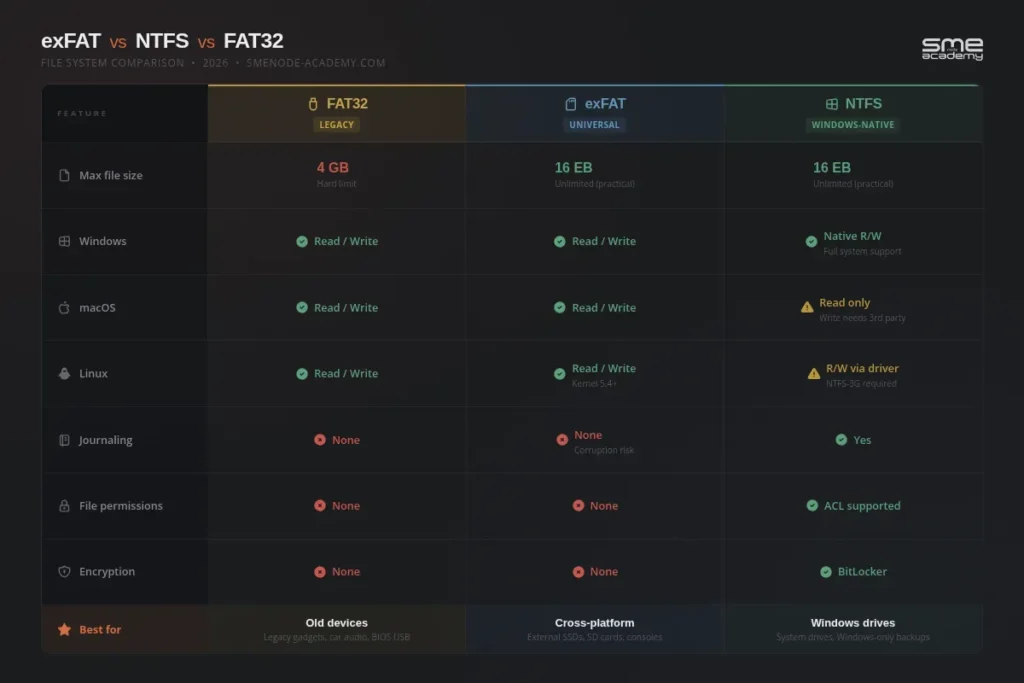
| Feature | FAT32 | exFAT | NTFS |
|---|---|---|---|
| Best for | Old devices, bootable USB | USB sticks, SD cards, cross-platform SSDs | Windows drives, backups, archives |
| Max single file size | 4 GB | No practical limit | No practical limit |
| Windows support | Read and write | Read and write | Read and write |
| macOS support | Read and write | Read and write | Read only by default |
| Linux support | Read and write | Read and write, native since kernel 5.4 | Read and write via NTFS-3G |
| Journaling | No | No | Yes |
| File permissions | No | No | Yes |
| Encryption | No | No | BitLocker, EFS |
| Boots on UEFI | Yes | No | Only via custom bootloader |
| Best for backups | No | No | Yes |
The 4 GB Limit Is the Whole Story
FAT32 cannot store a single file larger than 4 GB. Not a 4.5 GB one. The limit is absolute, and it’s the reason FAT32 lost the desktop.
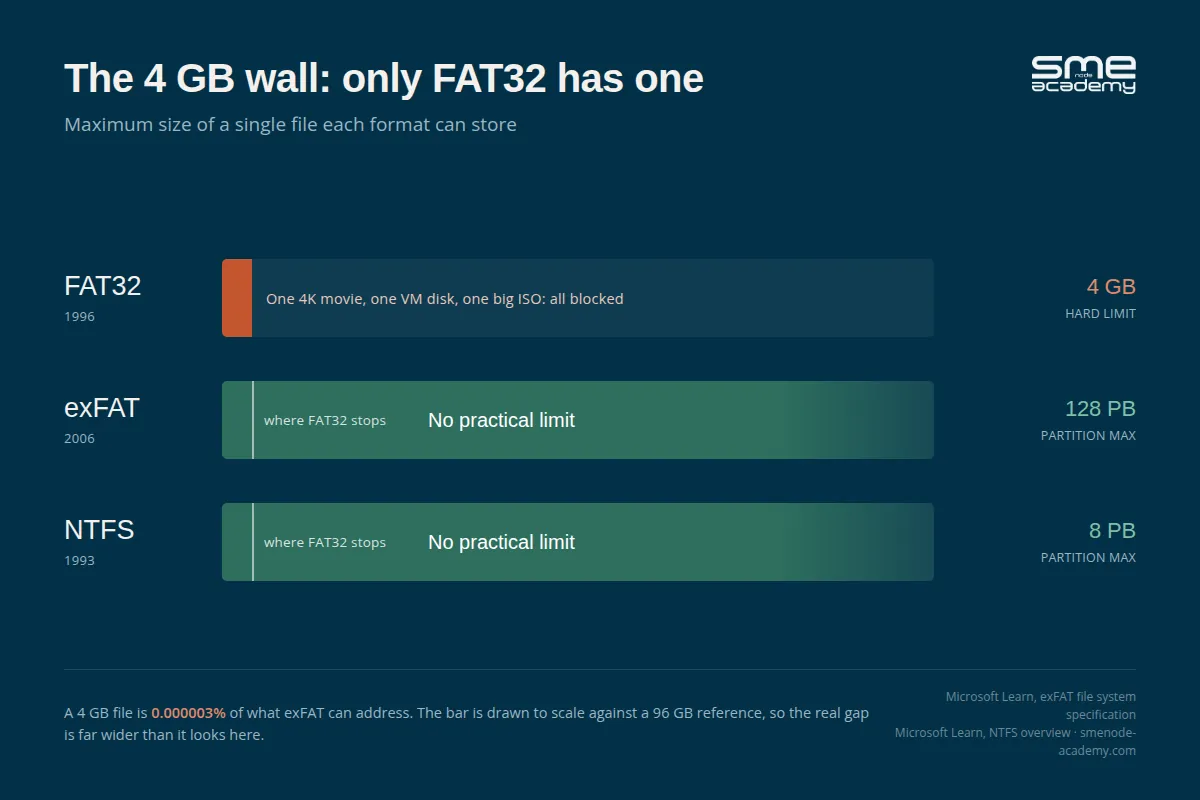
That cap comes from a 32-bit field in the directory entry. Four bytes, so 2^32 minus one byte, which works out to exactly 4,294,967,295 bytes. It’s baked into the format itself and no tool can raise it.
Here’s what actually hits that wall today:
- A two hour 4K video off a phone or drone
- A Windows 11
install.wimfile, currently around 4.5 GB - Any VM disk image worth using
- A single PlayStation game backup
exFAT and NTFS both use 64-bit fields instead. Their real ceiling is the partition size, and you’ll run out of drive long before you run out of format.
Which Format for a Bootable USB?
Use FAT32. UEFI firmware reads FAT32 and nothing else, unless the manufacturer shipped an extra driver, and most didn’t. Format a bootable USB as NTFS or exFAT and many machines simply won’t see it in the boot menu.
This is worth stating plainly because the advice gets reversed constantly. It isn’t “FAT32 for old BIOS machines, NTFS for modern UEFI.” Modern UEFI is exactly the case that needs FAT32.
exFAT never boots. No mainstream firmware carries an exFAT driver, so the drive won’t appear as a boot option at all.
The Windows 11 Problem, and the Fix
Windows 11’s install.wim is around 4.5 GB. FAT32 caps at 4 GB. So the format UEFI demands can’t hold the file Windows ships. That contradiction is why so many people end up with NTFS advice that then fails to boot.
You don’t have to choose. Split the image instead:
Dism /Split-Image /ImageFile:D:\sources\install.wim /SWMFile:D:\sources\install.swm /FileSize:3800That produces install.swm, install2.swm and so on, each under the cap. Delete the original install.wim from the USB and keep the .swm files in the same sources folder. Windows Setup looks for split images automatically, so nothing else changes.
Set /FileSize:3800 rather than 4000. It leaves headroom, since the 4 GB limit counts bytes and 4000 MB sits uncomfortably close.
When NTFS Is the Better Call
Rufus offers an NTFS option that works by writing its own UEFI:NTFS bootloader to the drive. It’s a real solution, not a workaround, and it saves you the splitting step.
The catch is Secure Boot. That extra bootloader isn’t Microsoft-signed, so machines with Secure Boot enabled may refuse it. You’d have to disable Secure Boot to install, then switch it back on. For a drive you’ll reuse across unknown hardware, FAT32 with a split WIM stays the safer bet.
| Boot scenario | Format | Note |
|---|---|---|
| UEFI, Secure Boot on | FAT32 | Split the WIM if the ISO exceeds 4 GB |
| UEFI, Secure Boot off | FAT32 or NTFS | NTFS via Rufus skips the split |
| Legacy BIOS or MBR | FAT32 or NTFS | Both boot fine |
| Linux install USB | FAT32 | Most ISOs stay under 4 GB anyway |
| Any firmware | Never exFAT | No firmware carries the driver |
What Is FAT32?
FAT32 arrived with Windows 95 OSR2 in 1996 and it’s the closest thing to a universal format. If a device has a USB port, it almost certainly reads FAT32.
That compatibility is all it has left. Beyond the 4 GB cap, there are no permissions, no journaling, and Windows won’t format a volume over 32 GB as FAT32 through the normal dialog. You’ll need diskpart or Rufus for that.
Use it for bootable USBs, older TVs and car stereos, legacy cameras, and GPS units. Nothing else.
What Is exFAT?
Microsoft built exFAT in 2006 for flash memory, keeping FAT32’s simplicity while dropping the size limits. It’s now the default on most large USB sticks and every SDXC card.
The appeal is real. It’s the only format Windows and macOS both read and write without extra software.
Its weakness is equally real: exFAT has no journaling.
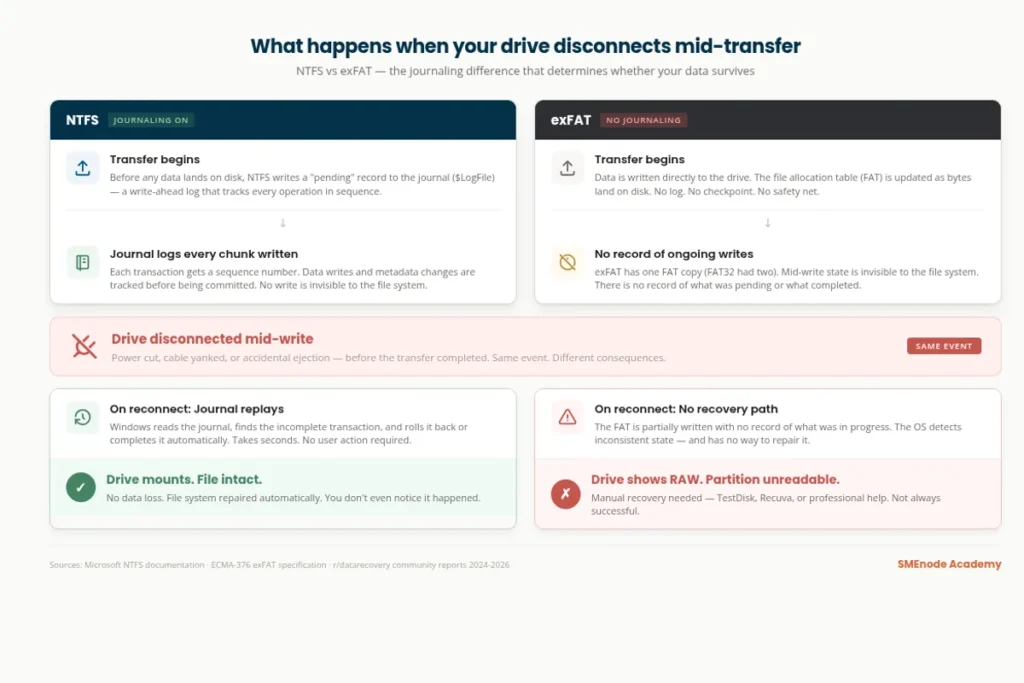
A journal is a running log of pending changes. When a write gets interrupted, the system reads that log on restart and repairs whatever was half-finished. exFAT keeps no such log, and it maintains only one allocation table where FAT32 kept two for redundancy.
So when power drops mid-write, or someone pulls the drive without ejecting, there’s nothing to recover from. Corruption on exFAT often takes the whole partition rather than one file. Windows also caches writes in RAM before committing them, which means a drive can look finished while data is still in flight.
Eject properly, every time. On exFAT it genuinely matters.
What Is NTFS?
NTFS has been the Windows default since Windows NT in 1993, and it’s the most capable of the three:
- Journaling that repairs interrupted writes on restart
- File permissions and access control
- Encryption via BitLocker and EFS
- Compression built in
- Hard and symbolic links
The one real limitation is macOS. Macs read NTFS out of the box but won’t write to it without third-party software such as Paragon or Tuxera, both around $20.
For a drive holding anything that matters, that $20 buys more protection than exFAT gives you free.
exFAT vs NTFS: The Difference That Matters
Both handle large files, so the choice comes down to safety versus compatibility.
| exFAT | NTFS | |
|---|---|---|
| Journaling | No | Yes |
| Allocation tables | One | Journaled metadata |
| Mac write support | Yes, native | Needs paid software |
| Permissions | No | Yes |
| Encryption | No | BitLocker, EFS |
| Survives a bad unplug | Often not | Usually yes |
| Best for | Cross-platform transfer | Anything you’d hate to lose |
There’s also a formatting trap worth knowing. Format an exFAT drive on Windows and it defaults to a 256 KB allocation unit, which is larger than macOS expects. The Mac may then throw errors or refuse the drive entirely.
If an exFAT drive needs to work on both, format it on the Mac. Windows reads Mac-formatted exFAT without complaint. The reverse often fails.
On Linux, exFAT has been native since kernel 5.4, so Ubuntu 20.04, Fedora 33, Debian 11 and anything newer handle it without setup. NTFS works through NTFS-3G, which ships with most distributions.
Which Is Best for Long-Term Storage?
NTFS, and it isn’t close. Archive drives sit unused for months, then get plugged in, written to, and unplugged. That’s the exact pattern that corrupts exFAT.
Journaling is what makes the difference. Each of those sessions is a chance for an interrupted write, and NTFS repairs them while exFAT accumulates damage silently until the partition stops mounting.
If the archive has to be readable on a Mac too, buy the NTFS driver rather than falling back to exFAT. And keep a second copy regardless. No file system is a backup.
OS and Device Compatibility Reference
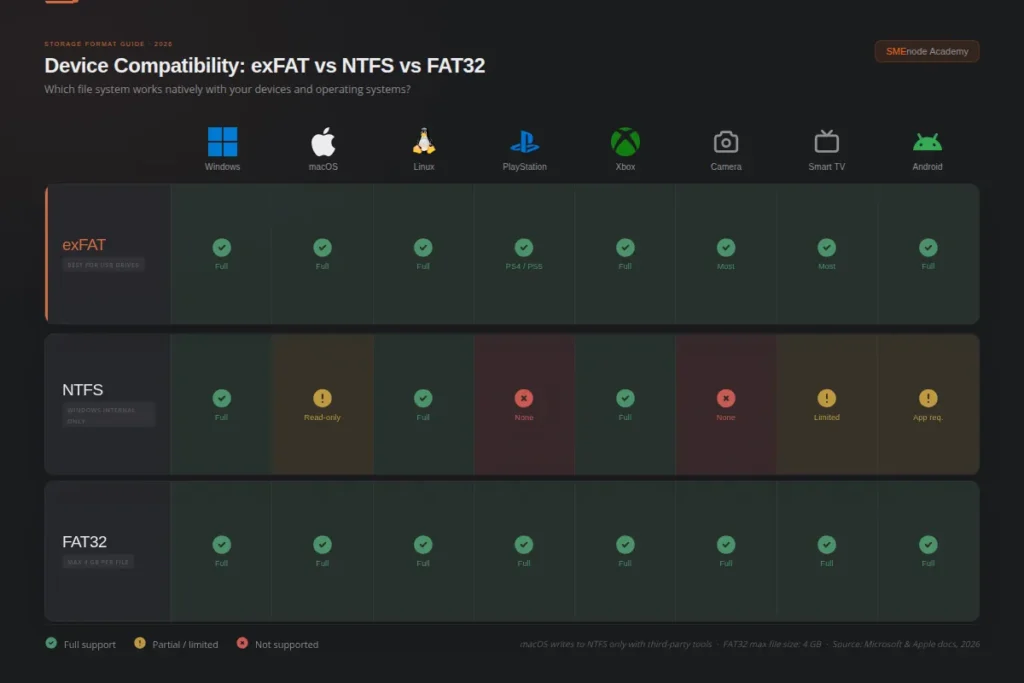
Operating System Support
| OS | FAT32 | exFAT | NTFS |
|---|---|---|---|
| Windows 10 / 11 | Read/write | Read/write | Read/write |
| macOS (current) | Read/write | Read/write | Read only |
| Ubuntu 20.04+ | Read/write | Read/write, native | Read/write via NTFS-3G |
| Android 11+ | Read/write | Read/write | Read only |
| iOS / iPadOS | Read only | Read/write | No |
Device Support
| Device | FAT32 | exFAT | NTFS |
|---|---|---|---|
| PlayStation 5 | No | Yes | No |
| Xbox Series X/S | No | Yes | No |
| Smart TV (2015+) | Yes | Usually | Varies |
| DSLR / mirrorless | Yes | Yes, SDXC | No |
| Dash cam | Yes | Varies | No |
| Older car stereo | Yes | No | No |
How to Format a Drive
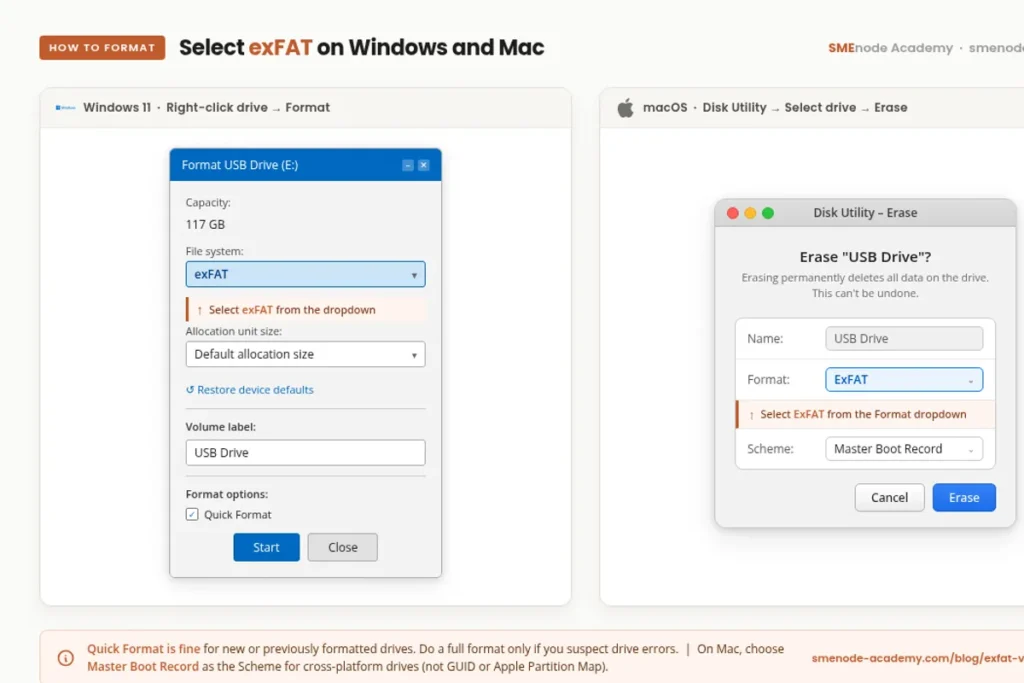
Windows: Right-click the drive in File Explorer, pick Format, choose the file system, leave Allocation Unit Size on Default, then Start. For FAT32 above 32 GB, the dropdown won’t offer it. Use diskpart or Rufus.
macOS: Open Disk Utility, select the drive in the sidebar, click Erase, then choose ExFAT or MS-DOS (FAT) for FAT32. Set the scheme to GUID Partition Map, then Erase.
To convert exFAT to NTFS without wiping the drive, run convert X: /fs:ntfs in an elevated Command Prompt, swapping X for your drive letter. Back up first. The command is reliable, but any conversion carries risk.
Frequently Asked Questions
Which is better, exFAT or NTFS?
NTFS for Windows-only drives, because journaling protects against corruption. exFAT only when you need native Mac write access too. NTFS is safer; exFAT is more portable.
What’s the downside of exFAT?
No journaling. An interrupted write can corrupt the entire partition rather than one file, and there’s no recovery log to repair it from. It also has no permissions or encryption.
Can I use exFAT for a bootable USB?
No. UEFI firmware has no exFAT driver, so the drive won’t appear as a boot option. Use FAT32 instead.
Should I use FAT32 or NTFS for a bootable USB?
FAT32, because UEFI reads it natively. If your ISO holds a file over 4 GB, split it with DISM rather than switching to NTFS. NTFS works through Rufus but can trip Secure Boot.
Is exFAT good for long-term storage?
No. Without journaling it degrades over repeated plug-and-unplug cycles. Use NTFS for archives.
Why does my USB say exFAT instead of FAT32?
Manufacturers ship drives over 32 GB as exFAT because Windows won’t format FAT32 above 32 GB through the standard dialog.
Is exFAT the same as FAT32?
No. exFAT removes the 4 GB file cap and supports far larger partitions. Both lack journaling, which is the one weakness they share.
Should I convert exFAT to NTFS?
Yes, if the drive lives on Windows and holds anything important. Run convert X: /fs:ntfs in an elevated Command Prompt. Back up first.
Bottom Line
There’s no single best format, just the right one for the job:
- NTFS if the drive stays on Windows. Best reliability and features.
- exFAT if you need Mac and Windows write access, and can accept the corruption risk. Format it on the Mac. Eject it properly.
- FAT32 for bootable USBs and old devices. Split the WIM when the ISO is too big.
For anything that matters, backups, project files, archives, use NTFS and pay the $20 for a Mac driver if you need one.
File systems come up constantly in IT work, and they’re covered in the CompTIA Network+ syllabus alongside storage and cross-platform troubleshooting. Our Network+ course is taught live, so you can ask an instructor directly instead of guessing. Pre-registration is open now. If you’re building storage for a home lab, the Proxmox VE course covers picking file systems for VM datastores, and our Proxmox homelab setup guide walks through it from bare metal. For structured practice, SMEnode Labs publishes certification workbooks at smenode-labs.com.
Sources:
- Microsoft Learn, exFAT specification: https://learn.microsoft.com/en-us/windows/win32/fileio/exfat-specification
- Microsoft Learn, Windows file systems: https://learn.microsoft.com/en-us/windows-hardware/drivers/ifs/about-file-system-drivers
- Microsoft Learn, split a Windows image: https://learn.microsoft.com/en-us/windows-hardware/manufacture/desktop/split-a-windows-image–wim–file-to-span-across-multiple-dvds
- Apple Support, Disk Utility file system formats: https://support.apple.com/guide/disk-utility/file-system-formats-dsku19ed921c/mac